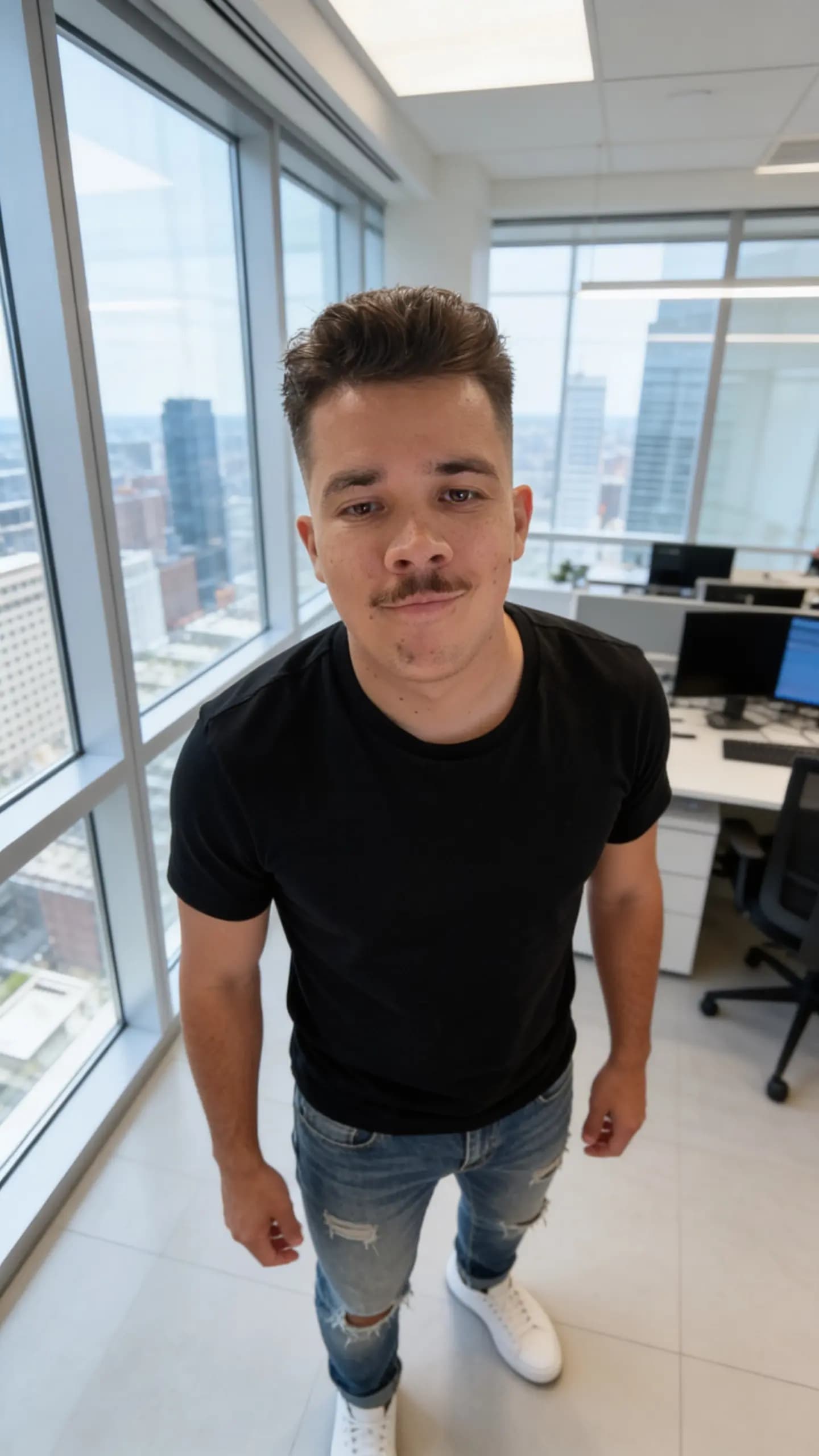
How to createYour firstAI Influencer
with @artem_dobriyChapters · 4
- 00:00 Intro
- 00:30 Configure your persona
- 03:40 Review your influencer
- 05:00 Publish & go live
Most AI influencer tools spit out a pretty portrait, then leave you fighting the model every time you generate a new post — different face, different hair, different body. OmniGems takes a different approach: at creation time, the Studio builds a multi-angle identity card of your character that locks in their look. Every future video, post, and product shot uses that card as a reference, so the influencer you launch on day one is the same character a year later.
This guide walks through every screen of the Influencer Studio at /studio, what each control actually does behind the scenes, and the choices that matter most for a long-running, monetisable AI persona.
What You'll Build in About 10 Minutes
The Studio is a three-step form — Appearance → Personality → Profession — followed by an automatic generation phase and an optional token launch. Each step feeds a structured prompt that two image models compile into your character: a portrait, then a reference sheet ("identity card") that anchors everything you create from that moment on.
Here's what's actually happening under the hood:
- You define the persona across three panels.
- OmniGems generates a portrait from your inputs (text-to-image, or image-to-image if you uploaded photos).
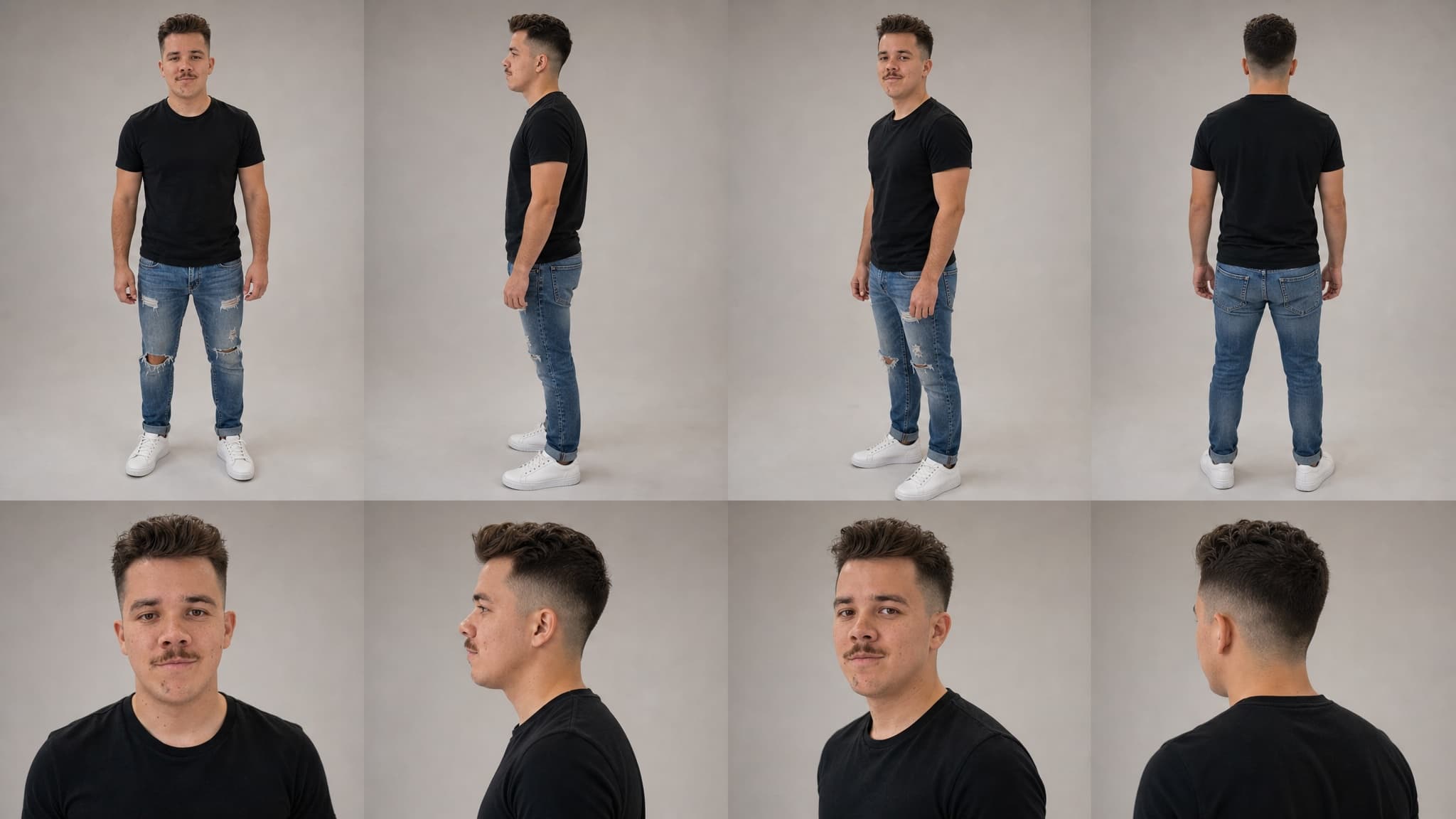
- OmniGems generates an identity card — an 8-shot character reference sheet (front / side / three-quarter / back full-body, plus four face close-ups) using GPT-Image 2 image-to-image.
- Both assets are saved to your influencer's media library and reused as references for every future generation.
- Optional: launch a token so supporters can hold a piece of your character.
The identity card is the part nobody talks about — and the part that makes the difference between a one-off avatar and a real, recognisable virtual personality. We'll spend a full section on it below.
Step 1: Appearance — Design Your Influencer's Look
Open the Studio and you'll see three ways to define how your character looks. Pick the one that matches what you're trying to do.
Mode A: Build From Scratch
The default. You assemble the character from preset attributes. The Studio offers controls across roughly twenty appearance dimensions, organised into four buckets:
Identity & Face
- Gender and age (slider, 18–65)
- Ethnicity — eleven options spanning African, Asian, European, Indian, Middle Eastern, Latino, South-East Asian, Pacific Islander, Indigenous, Mixed and Slavic features. Each maps to a prompt fragment the image model uses for ethnic cues.
- Skin tone with eleven preset swatches plus a custom hex picker
- Skin conditions (multi-select) — freckles, vitiligo, pigmentation, birthmarks, scars, dimples, moles. These are not cosmetic; they get a dedicated
MUST haveline in the prompt because models tend to smooth them out by default. - Eye colour (sixteen options including custom hex) and eye shape (almond, round, hooded, monolid, upturned, deep-set)
- Face shape, jawline, nose, lips, eyebrows — each as a small preset list
Hair
- Style (fifteen options from bald to braids to locs to fantasy fur), colour (fifteen presets plus custom hex), bangs, and facial hair for male personas
Body
- Body type (slim, athletic, average, curvy, plus-size, muscular) and height (petite, average, tall)
Style & Wardrobe
- Style archetype — sixteen aesthetics like streetwear, minimalist, bohemian, techwear, cottagecore, Y2K, old money, grunge
- Color palette (neutrals, earth tones, pastels, dark/moody, etc.)
- Signature accessories — up to three from a list of glasses, jewelry, watches, hats, scarves
- Signature elements — free-text quirks ("always wears oversized sunglasses, signature red lip, silver rings")
- Generation style — realistic, cartoon, or anime; this changes the foundation of the entire prompt
A few of these flags receive special treatment. Rare combinations — for example, blue eyes on an Asian face — get an explicit IMPORTANT: boost in the prompt to stop the image model from regressing to its training-data prior. Skin conditions get the same emphasis. If you want a character with vitiligo, freckles, or a distinctive birthmark, it'll actually show up.
Mode B: Upload Your Own Photos
If you already have reference images — your own face, a model you have rights to, an existing brand mascot — drop them into the upload tile. You'll then see two choices:
Upload Yours — Generate avatar directly from this image. The image you uploaded essentially becomes the avatar. The image model runs in pure image-to-image mode at maximum fidelity. Use this when you want the character to look exactly like the source photos.
Use as Reference — Guide AI with high similarity. The model takes inspiration from your uploads but allows creative freedom. A Reference Strength slider appears, defaulting to 75% and capping at 95%. Higher values mean more faithful to your photos; lower values let the AI drift toward the prompt-based persona description.
The 95% Threshold: Why It Matters
There's a meaningful behavioural shift at Reference Strength ≥ 95%.
Below 95%, the model deliberately deviates from your uploads to honour the rest of your appearance prompt. The portrait it produces won't be a 1-to-1 match of the photos. That means if we used the original photos as references for the identity card, the identity card would show the real person while the avatar shows an AI-drifted person — and the two wouldn't match. The whole point of the identity card is downstream consistency, so a mismatch defeats it.
At 95% and above (or in Upload Yours mode, where strength is locked to 100%), the avatar stays faithful enough that we can confidently use your original uploads as additional references for the identity card. The benefit is significant: the card model gets multiple real photos of the same person from different angles, which is exactly the input it needs to produce a coherent eight-pose character sheet.
Practical rule: if you want a character that looks like a real person, push the slider to 95% or use Upload Yours. If you want AI-flavoured creative interpretation of a reference, leave it at the default 75%.
Mode C: Prompt Mode (free text)
A single text area: describe your avatar in your own words and the AI parses it into the structured fields. Faster than the form for users who already have a clear vision. Quality of the result depends entirely on how specific your description is.
Step 2: Personality — Voice, Humour, Aesthetic
Personality is more than character flavour: the values you set here propagate into both the image generation (mood, expression, lighting) and every content piece the influencer produces afterwards (caption tone, video script style, voice timbre).
The panel collects six structured dimensions plus optional backstory:
Core traits (multi-select, up to three): confident, funny, wise, empathetic, bold, creative, analytical, chill, mysterious, energetic, nurturing, rebellious. Each trait carries a prompt fragment used to shape both visual mood and behavioural tone.
Communication style (single-select): casual, professional, playful, sarcastic, poetic, streetwise, academic, wholesome.
Humour type: witty, self-deprecating, observational, dry, absurdist, roast, none.
Voice style — used for text-to-speech and lip-sync video generation: warm & smooth, energetic & bright, deep & authoritative, raspy & sultry, soft/ASMR, confident & bold, chill & laid-back, quirky & unique.
Art style (visual): photorealistic, soft realistic, semi-realistic, cartoon, anime, 3D rendered, comic book.
Visual aesthetic: clean/minimal, warm/cozy, dark/moody, vibrant, vintage/film, cyberpunk, ethereal, raw/natural.
Language: fifteen options that lock the influencer's primary output language.
Then a few optional free-text fields that pay disproportionate dividends: custom personality (catchphrases, idiosyncrasies), mission/purpose, key facts and backstory, and current goal. The agent's content engine references these in every script. A wholesome fitness coach with the backstory "former gymnast, recovered from a knee injury, now coaches first-timers" will write fundamentally different captions from a generic fitness influencer.
Step 3: Profession — Niche and Role Type
Two preset lists, but they shape almost everything downstream.
Content niches (multi-select, up to three) — twenty options covering fashion, beauty/skincare, fitness, tech/gadgets, finance/investing, crypto/DeFi, travel/lifestyle, food/cooking, gaming, education, entertainment, business, art/creative, comedy/memes, spirituality, sustainability, music, sports, relationships, parenting.
Role type (single-select) — influencer/creator, expert/thought leader, educator, entertainer, reviewer/critic, coach/mentor, entrepreneur, artist, journalist.
These choices flow two ways:
- Into the portrait — a fitness coach is rendered in activewear in a gym setting; a crypto thought leader gets formal business attire and a curated background. The same appearance + personality input produces a visually different first portrait depending on the niche.
- Into every future content piece — niche dictates which topics the agent writes about, what props show up in product reviews, what music style is suggested for video B-roll, which creators it engages with.
Pick niches you actually want the influencer to talk about for the long haul. Switching niches later is possible but means re-training the audience.
The Hidden Step: How OmniGems Locks In Your Influencer's Look
This is the part that most "how to make an AI influencer" tutorials skip — and it's the part that determines whether your content looks like a coherent character or like a different person every week.
After you submit the form, OmniGems runs two image generations:
Generation 1: The Portrait
The Studio takes everything you entered — the dozens of appearance fields, the personality dimensions, the profession context — and assembles a structured prompt (subject description, scene, mood, camera/lens metadata, negative prompt, identity-mode block) that gets sent to your selected portrait model. You get back a single hero portrait.
If you uploaded photos, the portrait model runs in image-to-image mode at the strength you specified. If you didn't, it runs in text-to-image mode purely from the prompt.
This is what shows up first on the success screen. Most people stop here. They shouldn't.
Generation 2: The Identity Card
A few seconds later, OmniGems generates a second image: an identity card (also called a "character reference sheet"). It's a 16:9, 2K, eight-shot grid:
- Top row: full-body shots from four angles — front, side, three-quarter, back — with feet visible and no cropping.
- Bottom row: four close-ups of the face including profiles.
- Photorealistic, life-like, shot-on-DSLR style, muted tones — designed to be a clean reference, not a stylised piece.
Today this step uses GPT-Image 2 image-to-image, regardless of which model you picked for the portrait. The reasoning: it's currently the strongest model for producing a multi-angle character sheet from a single reference while preserving identity across angles. Other models silently ignore image inputs or drift on the back-view shots. We may swap to a stronger backend as new models ship; the rest of the pipeline doesn't change.
The card uses your portrait as its primary input. If you're in Upload Yours mode or pushed Reference Strength to 95% or above, your original uploaded photos are also passed as inputs (up to the model's sixteen-image limit), with real photos ranked first. This gives the card model the strongest possible signal for the rare angles — back of the head, profile shots — that a single front-facing portrait can't fully describe.
Why the Identity Card Is the Most Important Asset You'll Create
Once the card exists, every future piece of content you generate — a TikTok-style talking-head video, a product review, a fashion shoot, a behind-the-scenes vlog — uses it as the first and primary reference image. The portrait is secondary; uploaded product or wardrobe images are appended after.
This is what produces consistency. When you generate a video of your influencer in a kitchen, the model isn't guessing what their face looks like from scratch — it's anchoring on the close-up shots in the card. When you generate a back-view shot for a runway video, it's anchoring on the back-row pose in the card. The same eight reference shots are baked into the model's context every single time.
The card is generated once at creation and saved as identity_card media on the influencer record. There is no re-rolling it per content piece. That stability is precisely what makes your AI character feel like a person rather than a stochastic prompt.
A few practical implications:
- Spend a few extra minutes on Step 1. Once the card is rendered, the character's face, body, hair, and signature details are effectively locked. You can regenerate later, but you'll lose the consistency of any content you've already produced.
- For real people, push Reference Strength to 95% or use Upload Yours. Below that threshold, the card uses only the (drifted) generated portrait — a fine baseline, but you're throwing away the multi-angle reference data your uploads could have contributed.
- Upload multiple angles when possible. A front photo plus a profile or a back-of-head shot gives the card model dramatically better information than three near-identical front-facing selfies.
After Generation: Launch Your Token (Optional)
Once both images are generated and you've reviewed them, you can hit Launch to deploy your influencer. This does three things at once:
- Saves the influencer to your account with portrait + identity card as the canonical media references.
- Deploys the agent so it can start producing content on schedule.
- Optionally launches a token on a bonding curve, giving supporters a way to hold a piece of the character and participate in its growth.
Token launch is opt-in; you can run an AI influencer without one and add a token later. If you do launch a token, the contract address, supply, and initial liquidity are configured in the launch dialog before deployment.
Pro Tips for a Character Worth Following
- Pick a narrow niche. Fitness for first-time mums beats "wellness". Crypto news for solana NFT collectors beats "crypto". Specific characters compound; generic ones disappear into the algorithm.
- Match Reference Strength to your goal. Replicating a real person? 95% or Upload Yours. Building a fictional character inspired by a face? 70–85%.
- Use signature elements. A red lip, a specific pair of glasses, an asymmetric haircut — small distinctive features survive every model regeneration and become the character's brand.
- Write a real backstory. "Recovered gymnast turned mum-coach in Lisbon" travels across hundreds of captions. "Fitness influencer" goes nowhere.
- Skim the identity card before you launch. If the back-view shot looks wrong or the face close-up doesn't match the portrait, regenerate now — fixing it later means regenerating every piece of historical content too.
- Keep your three content niches related. Fashion + beauty + lifestyle compounds. Fashion + finance + parenting fragments your audience.
Frequently Asked Questions
Can I edit appearance after launch? Yes — but the identity card is the locked reference. If you change appearance significantly, you'll need to regenerate the card, and any content produced before the regeneration will visually drift from anything produced after.
Does the identity card cost extra? No. It's part of the creation flow and is generated once at creation time using a single image-to-image call (currently powered by GPT-Image 2).
Can I use my own photos for a real person? Yes, with consent. Upload them, choose Upload Yours for direct replication or Use as Reference at 95% for very faithful reproduction with light AI smoothing. If you don't have rights to the photos, don't upload them — see our disclosure and compliance guide for the legal rules.
What if my reference photos are mostly front-facing? The portrait will still generate fine, but the identity card has to extrapolate side and back views from a single angle. If you can include even one profile shot or one back-of-head shot, the card quality jumps noticeably.
Why does Reference Strength cap at 95% in Use as Reference mode? At 100% the avatar would be functionally identical to the upload, which is what Upload Yours mode already does. The cap forces a meaningful distinction between the two modes and leaves a small amount of room for the AI to do prompt-driven cleanup (skin smoothing, lighting normalisation) without altering identity.
How is this different from other AI influencer tools? Most tools generate a single portrait per content piece, hoping the model stays close to a stored description. OmniGems generates a multi-angle identity card once and uses it as a hard visual reference for every subsequent generation. The result is dramatically better cross-content consistency. See our comparison: Omnigems vs HeyGen and vs Synthesia.
Next Steps
- Read the AI influencer FAQ for the most common pre-launch questions.
- Pick a niche from best AI influencer niches in 2026.
- Plan your content engine with the best AI tools for influencer content in 2026.
- Read the AI influencer monetisation guide before you launch a token.
Ready to build? Open the Studio and start with Appearance. Spend the time — the identity card you generate today is the character you'll still be running a year from now.